Founder's note · OllaSync
OllaSync launches on 3 December 2026: why I built our own Zoom for learning
OllaSync launch: an online teaching platform built for our classes
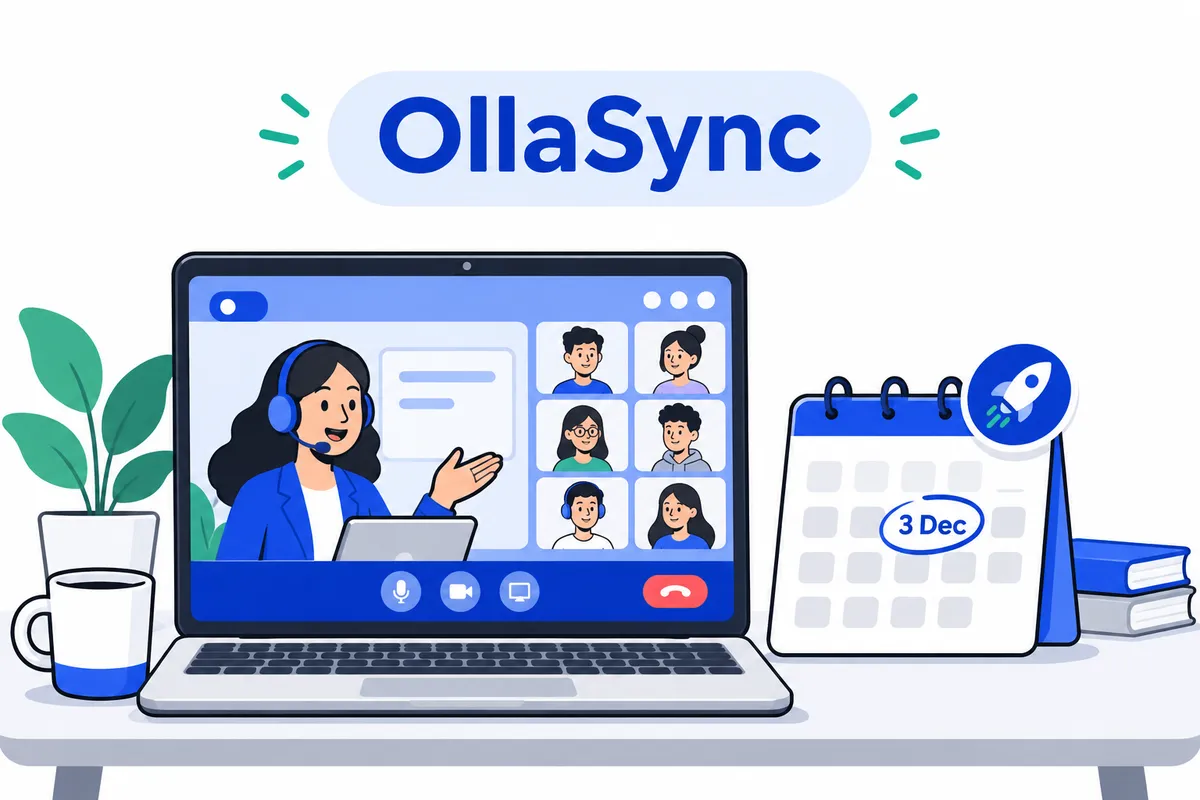
I am launching OllaSync publicly on 3 December 2026. It is a video meeting and live class platform designed for learning, an online teaching platform we initially built for our own classes. I teach one live class, and learners can follow it in their own languages through live translated captions and translated voice.
I am Vikas Swami, founder of OllaSync and Networkers Home, where we have trained network and security engineers since 2007. I wrote earlier about the engineering behind live translation. That work became part of a platform built around the responsibilities I knew from running our classes.
At Networkers Home, we had international students who spoke French, Spanish and other languages. They wanted to learn in their native languages. We could teach the subject, but we could not serve them in those languages, so they had to learn in English. I kept coming back to that limitation because the language we taught in determined who could comfortably follow an explanation.
The work also continued after class ended. Our trainers still had to check attendance, write notes and distribute material to students. Recordings needed to be available for review. We also needed a useful written record of the explanation given during class. These responsibilities came up repeatedly in our own training operation, and I wanted to account for them in what we were building.
OllaSync brings attendance reports, recordings and AI notes into the same teaching workspace. The AI notes come from recorded sessions after class, giving trainers a written record to use alongside the recording. During the lesson, live translation supports 19 languages, with up to five languages live in one session. Each learner chooses how to follow the same lesson, without needing a separate class in their language.
We started with what our own trainers and students needed: a way to follow the lesson in their chosen language and to manage the work that continued afterwards. With the public launch, I am offering that approach to other tutors, trainers and academies. Language choice is part of the live lesson; the attendance record, recording and notes support their work between classes.
Why live translation mattered to the students we could not serve
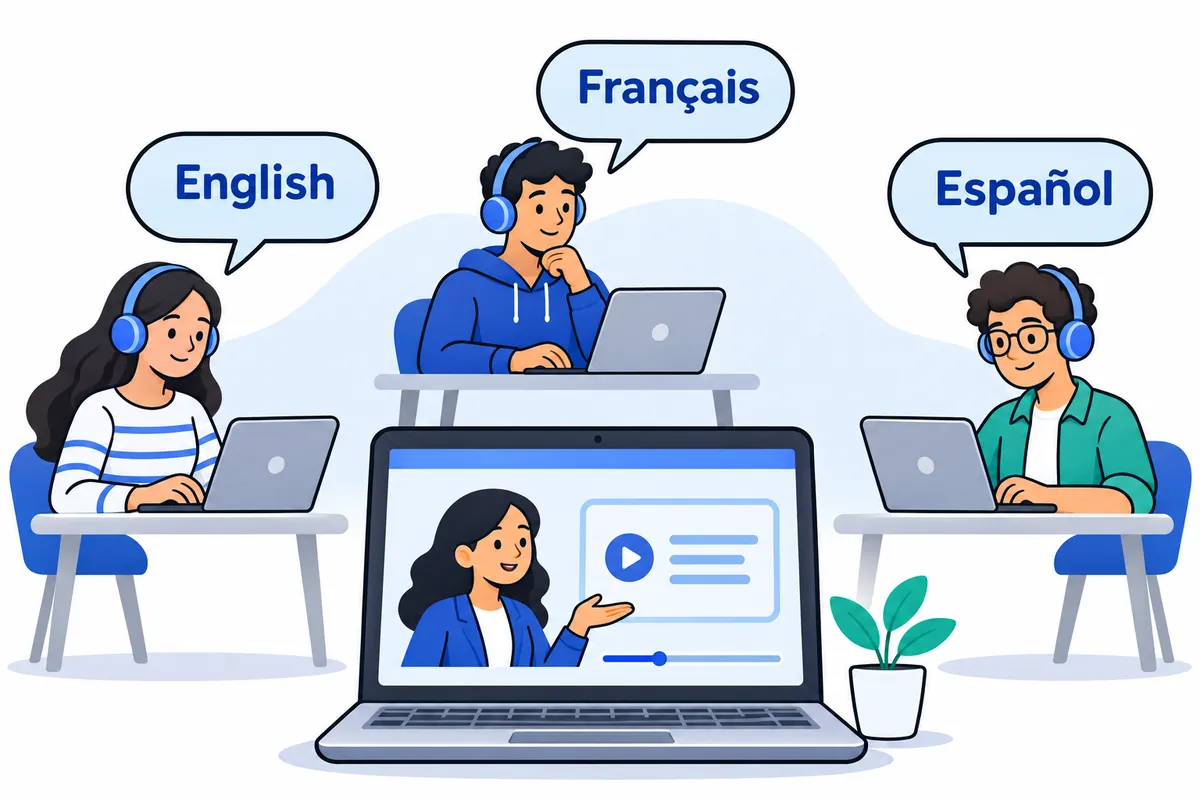
At Networkers Home, we had international learners who spoke French, Spanish and other languages. They wanted to learn in their native languages. We could teach them only in English, so that was the language they had to use to follow our classes. We had the subject knowledge to teach them, but we could not give the spoken explanation in the language they wanted to learn in. As a trainer, I saw that as a limitation in what we could offer.
That work began with the gap in our teaching. I had to look beyond whether someone could read the course material in English. Reading professional English and following a continuous spoken explanation are different tasks. We needed to account for that difference in how we taught. Being able to read the material in English was not enough to tell us whether a learner could comfortably follow the class.
A learner may recognise technical terminology in a document and understand a command. They may know exactly what a product name refers to. Written material also lets them pause over a sentence and read it again. In a live class, the explanation continues while the demonstration moves forward. The learner listens to why a step matters while watching what the trainer does, and familiarity with the written terms does not necessarily make that spoken explanation easy to follow.
I felt this particularly in technical labs. Learners need to watch the information on the screen while the trainer explains the reasoning behind it. A command on its own cannot convey everything the trainer is saying about when to use it or how to interpret what follows. I wanted us to make that explanation available in the learner’s language. Their knowledge of technical English should not determine whether we could teach them the subject.
Translated captions were part of the answer because they let learners read the explanation in their chosen language as the class proceeds. Reading, though, introduces another demand on their attention. During a live demonstration, captions and the lab compete for the same pair of eyes. Someone reading a separate stream of text still has to watch the trainer’s screen. Captions can support a learner, but they do not remove the need to divide visual attention during a demonstration.
That is why translated speech mattered to me alongside captions. A learner should have the option to listen to the explanation in their own language while keeping their attention on the demonstration. Captions remain useful for learners who prefer them. I wanted to offer both ways of following the lesson, so each person could choose how to follow a practical class without having to read throughout it.
Staffing was another consideration. Daily multilingual classes across time zones were difficult to address through staffing alone. Every language-specific arrangement would still have to fit the teaching schedule and the availability of the people delivering it. Adding people could be part of running a training operation. I also wanted us to be able to offer a language choice without having to arrange a separate teaching setup for every language, each tied to its own staffing and scheduling requirements.
That experience shaped what I wanted to build with OllaSync. The trainer should be able to speak once, with learners receiving live translated captions and spoken audio individually in their chosen languages. Each learner needed to choose their language while following the same lesson and technical demonstration as everyone else. That choice belonged with the learner, so the language selected for the whole room would no longer determine how each person had to follow the class.
Nearly twenty years of teaching: why a class differs from a meeting
I founded Networkers Home, where we have trained network and security engineers since 2007. Nearly twenty years of teaching has shaped what I expect from a classroom, whether students are sitting in front of me or joining through a browser. In either setting, I need to keep students involved and help them follow the lesson.
Here, I want to explain the teaching decisions behind OllaSync. Those decisions came from what I needed during lessons and the work left after a call ended. They also meant deciding where responsibility should stay with the teacher.
Our teaching model involved one trainer working with classroom and browser-based students simultaneously. I had to keep both groups involved in the same lesson. A question from the room mattered to someone watching remotely, and an explanation on screen needed to stay connected to what I was saying. I was responsible for teaching the whole class, however students attended.
Zoom supports online teaching, and it is excellent for meetings. Microsoft Teams and Google Meet are useful meeting tools too. Zoom already offers participant reports, AI summaries and a paid translation add-on. I built OllaSync around the class workflow we needed, with respect for what those platforms already offered. We started with problems inside our own training operation.
Language was one of those problems. French and Spanish speakers wanted to learn in their native languages, but we could only serve them in English. OllaSync brings live translated captions and translated voice into the same class so each learner can follow in their own language. We also had work that continued after teaching, less visible to students but still part of running a class.
Attendance had to be established before the next lesson. An end-of-month record came too late when I was preparing to continue a subject. We needed to know who had attended while that information could still inform the next class. OllaSync provides attendance reports, giving the trainer a record to work from. Presence alone does not establish understanding.
After explaining a topic and answering questions, a trainer often carried the useful summary in their head. Turning it into readable notes meant more work after class, and that burden made notes inconsistent. OllaSync provides recordings and AI notes generated from recorded sessions. I wanted the trainer to have material to review instead of relying entirely on memory.
Getting those notes to students was another job. Copying email addresses from enrolment sheets stood between preparing notes and sending them. OllaSync retains the invite roster and lets the trainer email notes to people invited by email, with additional addresses entered when sending. The trainer chooses when to send them and remains responsible for deciding whether the generated notes are ready for students.
Checking understanding remains teaching work. Attendance records can support follow-up, as can a recording and a summary. I still need to ask questions and listen to students’ explanations before deciding what needs another pass. That responsibility guides what I build and what I claim the software can do.
I also do not expect browser software to replace every physical classroom. Some teaching still needs a room with a whiteboard and real equipment. Having taught across classroom and browser settings, I want OllaSync to support the parts software can handle while leaving space for hands-on work and the trainer’s judgment about what students need next.
How live captions and real time translation work in a class
When I teach a technical lesson, I want learners watching the demonstration and thinking about the explanation. If following my English takes most of their attention, the lesson becomes harder before we even reach the technical problem.
Here, I want to explain what that work means inside a class, from the choices learners make to the technical terms we keep in English. I also want to be clear about the limits.
What AI translation does during a lesson
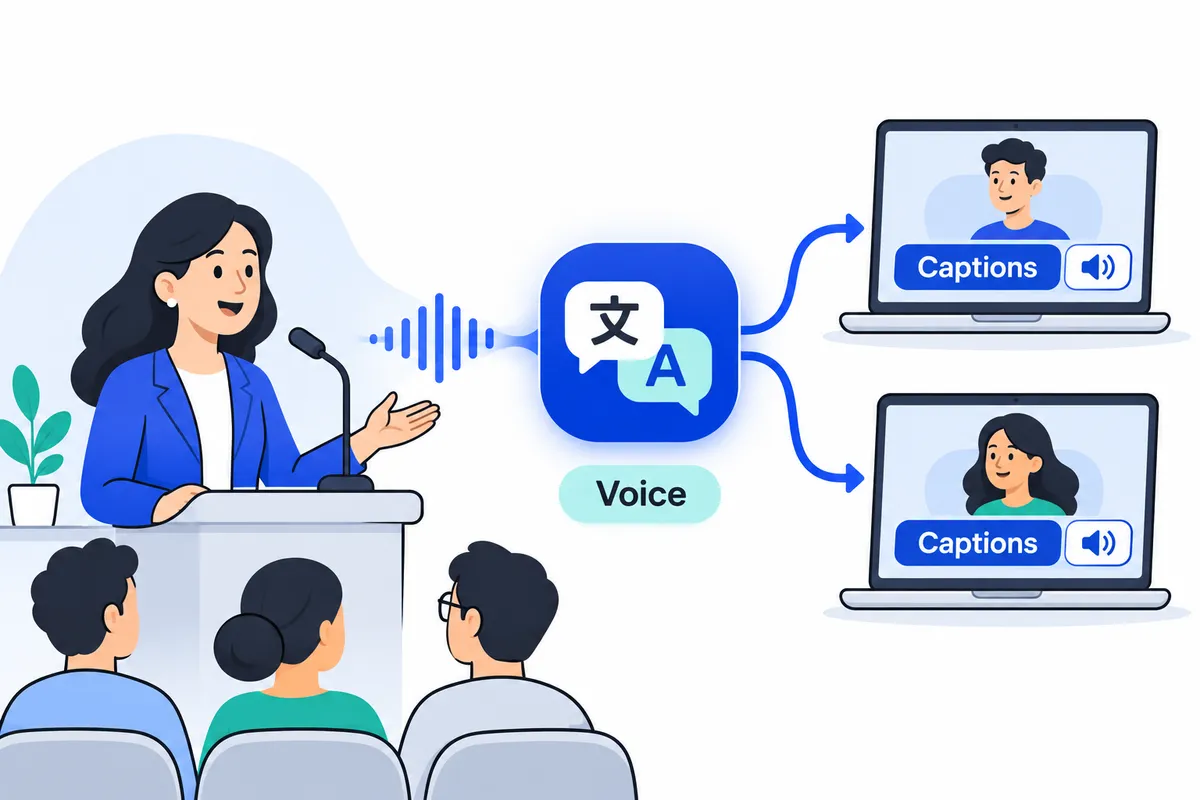
OllaSync’s AI Translate provides translated captions and translated voice within the same live class. I can teach in English while each learner independently chooses how to follow. Choosing French leaves the experience unchanged for someone following in Spanish or the original English.
There are separate choices for text and speech. In the meeting’s Captions menu, learners can choose original-language captions or translated captions. Original-language captions let someone read the English I am speaking. Translated captions present that explanation in their selected language. Spoken translation is available separately, so learners can read translated text while keeping the original audio.
To illustrate the workflow, imagine I am teaching a network troubleshooting lesson in English. This is a walkthrough, rather than an account of a particular student:
- A learner who wants French opens the Captions menu and selects French. To hear the translation as well, they enable the additional spoken-audio toggle.
- Another learner independently selects Spanish and follows the same lesson in Spanish.
- A learner who prefers the original English stays with that audio and can choose original-language captions.
I continue teaching, and everyone follows the same explanation in the same class. The French live translation page shows that particular language workflow.
For the French learner, captions refine as each sentence finishes, and each caption line identifies the speaker. The optional French voice reads the translation aloud. That spoken option matters during a lab demonstration: reading captions while watching changes on a shared screen asks the learner to divide their attention. Listening in their own language gives them another way to follow.
Learners using translated captions or audio can still ask questions and join the discussion. Those exchanges remain part of the lesson, whichever language a learner chooses.
OllaSync currently supports 19 languages. A single session can run up to five different languages simultaneously. The supported-language count describes the available selection; the five-language limit applies within a class. All 19 languages cannot run together in one session.
Why technical vocabulary stays in English
In network and security engineering, some words need to remain exactly as the learner will encounter them in a lab or a command reference. The same applies to terminology in a product interface.
We deliberately keep command syntax and vendor terminology in English while translating the surrounding explanation. I want learners to connect that translated explanation with the English terminology they see in their technical materials.
That decision comes from teaching. A command is something a learner must recognise and enter correctly. A protocol name needs to match the documentation they are reading. Translating those terms into unfamiliar alternatives could give the learner extra work: figuring out which English term the translated phrase refers to.
The explanation around those terms serves a different purpose. I might be explaining why a command is useful or what a result means. When we move to the next part of a problem, learners need to understand why we are taking that step. That is the material we want them to follow in their chosen language.
Machine translation can still make mistakes. Keeping technical vocabulary recognisable reflects a teaching decision about which parts of a lesson should change language and which parts should stay consistent.
Designed around the rhythm of teaching
During a lesson, I might explain something at length before a learner interrupts with a question. We discuss it, then return to the demonstration. We designed the translation workflow around that pattern.
The teaching workload includes a dominant speaker giving continuous explanations with known technical vocabulary. Learners also interrupt or ask a question before the trainer has finished a sentence. I wanted trainers to keep those ordinary interactions while using translation.
The AI features page provides more product detail about the tools behind this workflow. During a lesson, I want to focus on explaining the subject and making room for questions.
What I would ask trainers and learners to expect
“Real time” needs an honest explanation here. This is machine translation of speech, and it follows behind the speaker. It is not a substitute for certified interpretation.
French captions can change as a sentence completes. Learners should expect unfinished lines to be refined as more of the sentence arrives. As a trainer, I would also leave space for learners to follow the translated explanation before moving into a question or another demonstration.
I recommend a good headset microphone and a quiet room. Those are practical steps for giving the translation clear speech to work with. I would not attach a numerical promise to the result.
There is also a privacy boundary: live translation is unavailable in end-to-end encrypted meetings, because their audio is not readable by the server. I will explain that distinction fully in the security section. When planning a translated class, the trainer needs to account for that restriction before the lesson begins.
Attendance reports that are ready after class
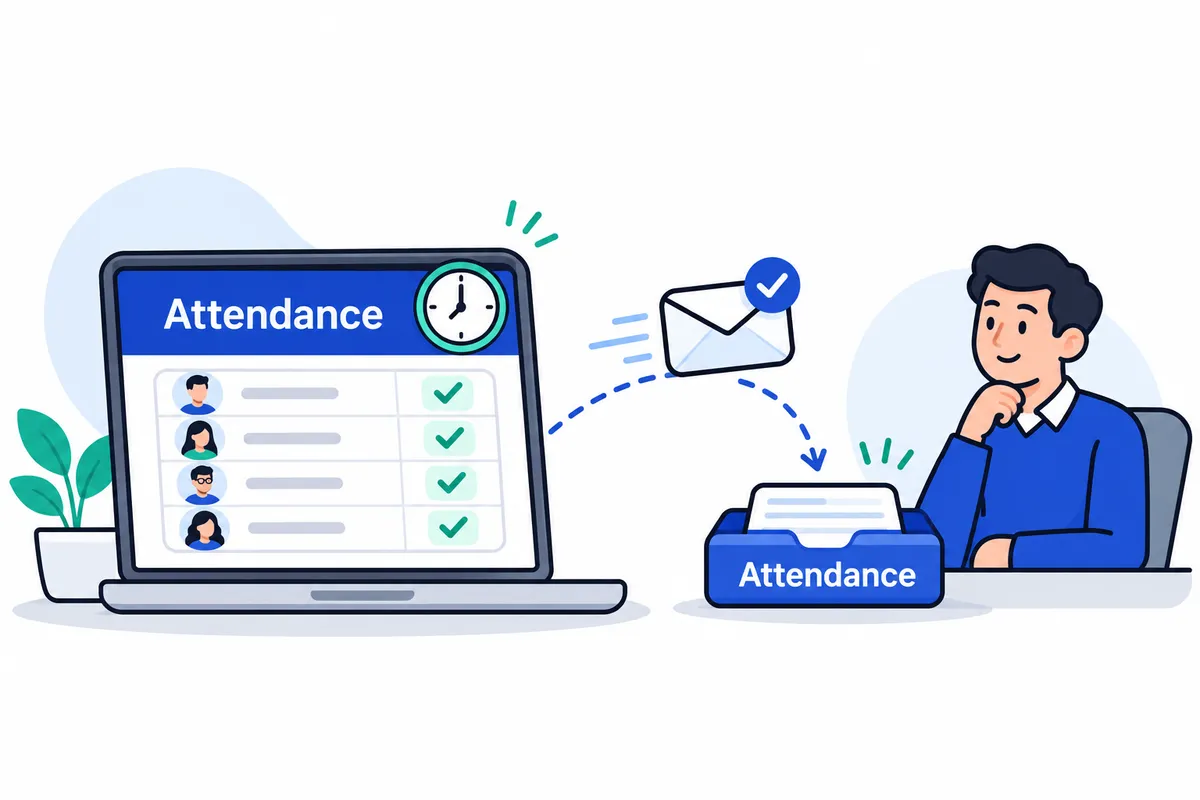
Before I build on an earlier class, I want to know who attended it. That is the practical question I need an attendance report to answer as I prepare the next lesson.
At Networkers Home, we needed that information before the next lesson. A monthly attendance review had its place, but a trainer continuing an explanation needed to know who had been present for the earlier class. Waiting until month-end meant the information was missing when the trainer needed it for teaching.
The work around each lesson also shaped OllaSync. Attendance was part of the after-class work that fell to trainers. I wanted the record within the class workflow, alongside the session the trainer had just taught.
What the finished-class record contains
OllaSync’s finished-class attendance record shows these fields:
| Field | Purpose for the trainer |
|---|---|
| Participant names | See who attended the session. |
| Host’s email | Identify the host associated with the class. |
| Start time | Place the session in the teaching schedule. |
| Duration | See how long the session lasted. |
| Attendance count | Check the number of attendees recorded for that session. |
The trainer opens attendance through the meeting row’s menu, without going into an admin console to find it. When I review a finished lesson, I want to find its attendance record there, alongside the meeting I am reviewing.
I also keep the limits of these fields in mind. A name in the report tells me that a learner attended. It cannot tell me whether they paid attention, understood the explanation or contributed meaningfully. During teaching, I still need to ask questions and check understanding rather than draw those conclusions from attendance.
The host also receives a session wrap-up
OllaSync automatically sends a post-session email to the host with attendees, minutes, recording status and a dashboard link. The host can review those session details in the email, then follow the link back to the dashboard.
Older workspaces need to switch host wrap-up emails on. In an existing workspace, I would check that setting rather than assume every workspace already has the same default.
When I describe this as attendance tracking software for a class, I mean the workflow around teaching a lesson and preparing the next one. I can review attendance to see who was present for the class I am about to build on. That gives me a factual starting point for deciding what to revisit and whom to ask about missed material, while leaving the teaching judgement with me. Broader administrative systems serve a different scope; this record stays focused on the live session.
Meeting recording and AI meeting notes after class
At Networkers Home, too much of the lesson wrap-up lived in the trainer’s head. Once we had delivered the explanation and answered questions, turning the conversation into useful notes was another job waiting after class. The notes varied because writing them depended on the trainer finding the time and energy.
Sending them took more work. Trainers had to copy email addresses from enrolment sheets before students could receive anything.
The work after class mattered to me for the same reason: I wanted our trainers to spend their attention on teaching. Students needed a recap they could return to, without depending on what someone found time to write afterwards.
From a selected recording to usable notes
OllaSync’s post-meeting AI workflow starts with an eligible cloud-recorded session. Recording is optional, explicit and visible to everyone in the class. Every recording has to be started deliberately, with no silent capture. Using OllaSync leaves the choice of whether to record a meeting with the people running it.
The workspace controls where AI processing applies. Processing runs after the meeting on selected recordings. When an eligible recording selected for that workflow completes, OllaSync produces the transcript and structured notes. The trainer has no separate generation button to press.
Automatic preparation applies within that enabled workflow. Recording a class and selecting it for AI processing remain separate choices, so classes outside the workflow stay outside it. End-to-end encrypted meetings are excluded from AI processing because there is no server-readable transcript.
The transcript is timestamped and searchable. A student looking for a particular explanation can search the text to find when it was discussed. Users can also search transcript text across their recordings, which helps them find the relevant replay without opening each one and guessing where to begin.
What students can receive
The notes organise the recorded conversation into material students can use after class:
| Part of the notes | What it provides |
|---|---|
| TL;DR | A short overview of the session |
| Topics and concepts | The subjects covered and ideas discussed |
| Homework | Work set during the class, where applicable |
| Action items | To-dos drawn from the conversation |
| Decisions | Decisions made during the session, where applicable |
| Q&A | Questions and answers from the discussion, where applicable |
The summary is grounded in the meeting’s own transcript. Users can also ask questions about a recorded meeting and receive answers grounded in that transcript. I want students to be able to trace a recap back to what we actually taught and return to the explanation behind a summary.
Sending those notes remains the trainer’s decision. The Notes panel has an email action that sends them to people invited by email, with the option to add addresses at sending time. OllaSync retains the invitation roster to support that step.
The trainer decides when the notes are ready and sends them deliberately. Attendance alone does not trigger delivery. Additional recipients can be included at that point, without rebuilding the address list from an enrolment sheet.
Local recording and cloud recording serve different jobs
A learner’s local recording is a personal copy of what they are watching and hearing. It captures the main tile shown when recording starts, such as the presenter’s camera or a shared screen. The learner’s own tile is excluded.
The learner can save the original audio or the single translated voice they selected. Language switching is paused while local recording runs. The saved file contains only the chosen audio; other available languages are excluded.
Local recording is encoded in the browser using the learner’s device CPU and memory. It stays on that device and saves to downloads. Nothing is uploaded, no cloud copy is created, and no server-side recording job starts. A visible LOCAL REC indicator remains on while it runs.
I want learners to understand the practical limits before relying on it. A long recording remains in browser memory until saved, so the device needs enough memory. Stopping the recording or leaving the room saves the video file to downloads. Closing the tab before saving loses an unsaved recording, so stop the recording first.
The host’s cloud recording is separate. It produces a file for the room using the room audio. A learner’s locally saved translated recording stays outside the cloud AI workflow described above.
Workspace replays are access-controlled. A recording kept there is available only to authorised viewers, including students the tutor allows. There is no public replay link. As a trainer, I want to make deliberate choices about who can watch a replay, just as I do about recording a class, selecting it for AI processing and sending the notes afterwards.
Browser-based virtual classroom software with screen sharing
When I plan a class, I want students to be able to follow the joining instructions without taking time away from the lesson. Students need a clear route into the classroom, and a browser link gives them one.
Do students need to install a live translation app?
No. Students open their invitation link in a modern browser without installing software. Invited guests can join without creating an account. They enter the waiting room, where the host admits them. Tutors can teach from the browser too.
Once inside, each learner can choose their language for live translated captions and translated voice within the meeting, without installing a separate translation application.
Browser-based access requires a modern browser. I would not guarantee compatibility or performance on every device. Local recording also uses the learner’s device resources, including CPU and memory, because the browser encodes the recording. These are practical details I want students to understand before joining a class.
For the tutor, the starting point can be an instant meeting, a scheduled class with an invitation link and calendar file, or a personal room with a stable meeting link.
Sharing the lesson, then working through it
A presenter can share an entire screen, a particular window or a browser tab, including system audio. For a technical lesson, I would choose the view around the task. A window suits a demonstration, while a tab works for browser-based material. I would share the screen when moving between applications.
Shared-whiteboard annotation gives me a way to work through an explanation visually with the class. I can sketch a network relationship or mark the part of a diagram we are discussing, explaining the reasoning as I go. The video meeting features page sets out the sharing and annotation options alongside the other in-class tools.
Making room for questions and practice
Breakout rooms let a tutor move from explanation to smaller-group work. OllaSync supports up to ten rooms, with per-person or round-robin assignment and an option to bring everyone back.
Group chat and private messages provide written channels for questions. Before continuing, I can use a live poll to ask the class for an answer. Students can also use raise-hand to signal that they want to speak.
The host has controls for managing the room: a waiting room, meeting lock, password, mute-on-entry, mute-all and co-hosts, plus participant removal and bans. I want those controls within the teaching workflow so the tutor can manage entry, discussion and practice while keeping attention on the lesson.
Privacy and encryption: what OllaSync can and cannot process
As the founder of Networkers Home and OllaSync, I want to explain what “encrypted” means before asking anyone to choose a meeting setting. Processing class content involves a privacy trade-off that trainers should understand before class. Our security details explain the distinction between encryption in transit and optional end-to-end encryption.
Encryption in transit and end-to-end encryption are different
Every OllaSync meeting encrypts media in transit. In ordinary language, the media is protected while travelling across the network, with keys negotiated for that call.
In a standard meeting, the media remains readable on the server. Standard-meeting chat and direct messages are also encrypted in transit and remain server-readable. Transport encryption protects content as it travels; OllaSync can still read it on the server. Live translation, recording and AI processing need that access to work.
Optional end-to-end encryption changes how the content is protected. Video, chat and screen sharing are encrypted inside participants’ browsers using a key held by participants. The service does not receive that key, so it cannot read the encrypted content. Trainers can choose this option for each meeting, on every plan.
The service can still see meeting metadata, including who is connected, connection timing and the room identifier. End-to-end encryption protects the content while leaving those details about the connection visible to OllaSync.
| What matters for the class | Standard meeting | End-to-end encrypted meeting |
|---|---|---|
| Media encrypted in transit | Yes | Yes |
| Content readable server-side | Yes | No, for end-to-end encrypted content |
| Live translation | Available | Unavailable |
| Recording | Available when enabled | Cannot be recorded |
| AI transcription and notes | Available for selected recordings | Excluded |
| Meeting metadata visible to OllaSync | Yes | Yes |
For a trainer, this affects what can happen during and after class. Live translation is unavailable in end-to-end encrypted meetings because the server cannot read their audio. Recording requires server-side media decoding, so those meetings cannot be recorded either. Without the encryption key, OllaSync cannot produce a transcript; end-to-end encrypted meetings are excluded from AI transcription and notes.
When I prepare a class, I need to know whether translated voice, a replay and AI notes will be available. Choosing end-to-end encryption means planning without those features, because the service cannot access the content needed to provide them.
What happens to workspace recordings
When recording is enabled for a standard meeting, the recording is stored privately in the workspace. Stored recordings are encrypted at rest, meaning they are protected while stored. Access controls restrict viewing to authorised people, and access uses short-lived links.
Encryption at rest is different from end-to-end encryption. A stored recording can still be processed for transcription and notes where the workspace permits AI processing. Recording itself is explicit and visible to everyone in the class, with no silent capture.
Before students join, I would start with what they need and what the discussion will contain. If students need translated captions or voice, or a recording and notes afterwards, the trainer needs a standard meeting and should explain that processing. If the priority is keeping content unreadable to the service, choose end-to-end encryption and plan the lesson without translation, recording or AI notes.
An online teaching platform for tutors, trainers and academies
I built OllaSync around the work we were doing at Networkers Home. I’m offering it beyond our own classes because other trainers share the same needs: teaching a lesson, taking questions and giving learners something useful to review afterwards.
That work extends beyond network and security training. An organisation teaching nontechnical subjects can use the same browser-based lessons, language choices and after-class tools while keeping its own approach to teaching.
How it fits different teaching practices
For tutors and coaches, the starting point is a one-to-one lesson or a small group. The tutor teaches from the browser, and learners join through a browser link without installing an application. Screen sharing supports explanations and demonstrations. Each learner can choose translated captions or spoken audio. OllaSync supports 19 languages, with up to five languages live in a single session.
With professional trainers, I see the value in connecting the live session to the work afterwards. Attendance reports provide a record of who attended. AI notes from selected recorded sessions provide a transcript, summary and action items. The trainer can check those notes before sending them and choose when to email them to learners.
Academies can use recordings and notes to give learners material to revisit between lessons. Workspace recordings have controlled replay access. Students can view them only when the tutor allows access, rather than through a public recording link. An academy can offer that review material alongside its live teaching.
These teaching use cases reflect the routine I know as a trainer. I still have to prepare the lesson and explain the subject, then respond to questions as learners work through it. For existing instructors, reaching learners in additional languages is a reason to consider OllaSync, without a promise of new enrolments.
LMS video translation through a meeting link
If your course already lives in an LMS, you can keep the course materials there. The LMS video translation workflow uses an OllaSync meeting link:
- Create or schedule an OllaSync meeting.
- Copy its join link.
- Place that link on the LMS course page where learners need the live lesson.
- Learners open the link and join in their browser, then choose their language.
During the session, the trainer can use screen sharing, whiteboards, breakout rooms and polls. Existing readings and other course materials remain in the LMS.
The meeting link is the connection described here: learners find it on the course page and use it to enter the live lesson. I would start by placing the live lesson alongside the materials learners already use, so the trainer can keep the course they have built.
Try OllaSync free
Try the free plan to test it today. Start a class, invite a few learners and let each of them pick their language. Plans for bigger classes are on the OllaSync pricing page.
Comparing OllaSync with Zoom, Microsoft Teams and Google Meet for teaching
When I compare Zoom with OllaSync, I start with the lesson and the work around it. Zoom already offers participant reports, AI summaries and a paid translation add-on. At Networkers Home, I needed to help learners follow the lesson and give trainers attendance, recordings and notes they could use afterward. I built OllaSync around that teaching workflow.
| What a class needs | OllaSync | Zoom |
|---|---|---|
| Built for | Live classes, with translation and after-class tools in one workspace | Meetings, and very good at them |
| Learning in your own language | Live translated captions and voice, 19 languages, up to five live per session | A paid translation add-on |
| Attendance | Finished-class attendance from the meeting row, plus a wrap-up email to the host | Participant reports |
| Notes after class | AI notes from recorded sessions, sent to learners when the trainer chooses | AI Companion summaries |
| Joining | A browser link, no download, no account for invited guests | The Zoom app or browser |
Microsoft Teams and Google Meet are capable meeting tools as well. I would test them, and OllaSync, against the same lesson.
Compare a complete lesson
If you are evaluating Zoom for education, take a lesson you already teach and walk through what happens before, during and after it. I would use the same exercise when considering a Google Meet alternative or a Microsoft Teams alternative.
Before the lesson, check how the trainer schedules the class, invites the batch and prepares the language support learners need. Confirm the relevant plan and settings with each provider so you can see how the trainer would use the feature in practice.
During the lesson, test the learner’s experience alongside the trainer’s. In OllaSync, I can speak while each learner independently chooses translated captions or spoken audio within the session’s language limit. For a live lab demonstration, listening to the explanation matters because students are also watching the shared screen. That is the teaching situation I would test when comparing language options.
After the lesson, follow the attendance and notes through to their destination. In OllaSync, the trainer opens attendance from the finished meeting’s row. AI notes come from eligible recordings under the workspace’s settings; the trainer decides when to email them to invitees and any additional addresses. Check the equivalent steps in each tool, including who can access the report and how learners receive the recap.
For more context, see the OllaSync and Zoom comparison. I recommend comparing the complete teaching routine, including the work left for the trainer after everyone leaves.
What OllaSync means for Networkers Home students
For me, this comes back to the students we could not serve in their own language. French and Spanish speakers had to learn in English, even when they wanted instruction in their native language. As a trainer, I have to explain clearly and make room for questions. I also have to think about what students can return to after class.
Networkers Home’s one-on-one online training runs entirely on OllaSync. That is the current use I can verify. I am describing one-on-one online training here, without extending that claim to every Networkers Home course, trainer or batch.
For a student, the available tools support the live lesson and later review, depending on the class settings and plan:
- Students can join through a browser without installing an application.
- When translation is enabled, each learner can independently select translated captions or spoken audio. OllaSync supports 19 languages, with up to five languages live in one session.
- A trainer can share their screen to show the material or demonstration being discussed.
- Recordings and AI notes give students material to revisit after the session, where enabled and supported.
I want students to know when they can expect recordings and notes. Recording is optional, so I cannot promise a recording of every class. Workspace recordings are restricted to authorised viewers. AI notes come from selected recorded sessions where processing is enabled; end-to-end encrypted meetings are excluded. The trainer has to take action to send those notes to students. Having AI notes available therefore does not mean every student receives an automatic email.
Where enabled and supported, recordings and AI notes give students something to review, while I remain responsible for checking understanding and explaining something again when needed. Attendance reports can help with class administration. I still need to check whether an explanation made sense, because an attendance record cannot tell me that.
Some learning still needs an in-person room, a whiteboard and real equipment. I want us to keep choosing the setting each lesson needs. Whatever the setting, I want students to understand what we teach and how the lesson will work, including what they can expect from me.
What launches on 3 December 2026, and how to start
We’re launching OllaSync on 3 December 2026 as a browser-based platform for meetings and live classes. At launch, it includes AI Translate with live translated captions and voice, attendance reports, screen sharing, recordings and AI notes. It supports 19 languages, with up to five languages live in one session, so learners can follow the same class in their chosen language. You can review these capabilities in the feature overview.
Before you invite a class, I recommend checking your plan and meeting settings. Participant capacity, meeting duration, concurrent meetings, recording options and translated-voice allowances depend on the plan.
The encryption trade-offs explained earlier still apply. Every meeting encrypts media in transit. Optional end-to-end encryption keeps the content unreadable to OllaSync’s servers, which means live translation, server-side recording and AI notes are unavailable for those meetings. AI notes work on recorded meetings covered by your workspace settings.
When OllaSync launches, this is how I recommend getting started:
- Visit OllaSync and try the free plan to test it today.
- Choose how you want to host your class. You can use your personal room, start an instant meeting or schedule a class with an invite link. A scheduled class can also include a calendar file.
- Share the link with your learners. An invited learner can open it in a modern browser without installing an application or creating an account. After admission through the waiting room, each learner can choose a language for translated captions and enable translated voice.
I built OllaSync because our French and Spanish speakers at Networkers Home had to learn in English when they wanted to learn in their own languages. I also knew the work that remained for the trainer after class: checking attendance, preparing notes and making recordings available. Both problems shaped what we built. I wanted learners to be able to follow the explanation in their own language, while giving the trainer the records and follow-up material needed to prepare for the next lesson.
Frequently asked questions
When does OllaSync launch, and what is it?
OllaSync launches on 3 December 2026. I built it as a video meeting and online teaching platform after seeing the language and after-class workflow problems in our own training operation at Networkers Home. It brings live translated captions and voice, attendance reports, screen sharing, recordings and AI notes into the class workspace. Students can join through a browser without installing software.
How does live translation work, and how many languages does OllaSync support?
I can teach one class while each learner independently chooses translated captions or spoken audio in their own language. OllaSync supports 19 languages, with up to five different languages live in one session. Technical command syntax and vendor terminology remain in English while the explanation is translated. This is machine translation that follows behind the speaker, not certified interpretation, and it is unavailable in end-to-end encrypted meetings.
Is OllaSync a Zoom alternative, and how does Zoom translation compare?
I describe OllaSync as a Zoom alternative built around a class workflow. Zoom made online teaching possible for a decade and is excellent for meetings; it also offers participant reports, AI summaries and a paid translation add-on. OllaSync brings learner-selected translated captions and voice together with attendance, recordings and notes. I would compare the teaching workflow and current plan details rather than assume either product lacks those broad categories.
Does OllaSync provide something similar to a Zoom attendance report?
Yes. OllaSync provides finished-class attendance records showing participant names, the host's email, start time, duration and attendance count. I can access attendance through the meeting row's menu rather than an admin console. The host's post-session wrap-up email also includes attendees, minutes, recording status and a dashboard link. Zoom offers participant reports too; the distinction I am making is about access within the class workflow, not exclusive functionality.
How do meeting recordings and AI meeting notes work?
For eligible cloud-recorded sessions, OllaSync produces transcripts and structured notes after the recording completes, under workspace controls. I decide when to email the notes to invited learners and any additional addresses. A learner's local recording is separate: it saves the viewed presenter or shared screen with the selected original or translated audio to their device. It does not automatically create a cloud copy or enter the AI workflow.
Do students need to download an app or create an account?
Students can join an OllaSync class through a browser link without downloading an application. Invited guests can join without an account, with the host admitting them through a waiting room. Tutors can teach from the browser too. I would describe this as a modern-browser experience rather than promise that every laptop performs identically. Local recording also uses the learner's device CPU and memory.
Are OllaSync meetings end-to-end encrypted, including translation and AI notes?
Every OllaSync meeting encrypts media in transit, and optional end-to-end encryption is available per meeting. In that mode, the browser encrypts video, chat and screen sharing using a key held by participants that the service never receives. Live translation is unavailable, recording is unavailable, and AI transcription and notes are excluded. Standard meetings remain server-readable, and OllaSync can still see meeting metadata in end-to-end encrypted sessions.
How much does OllaSync cost?
Try the free plan to test it today. Plans for bigger classes and academies are on the OllaSync pricing page.